
Taking Notes During Call Time
It's easy and simple for call time managers to take notes during call time. There are two different ways to do this, either on your mobile phone or the web application.
Please see below for videos on taking notes
Taking notes on Mobile: https://cloud.pingdex.app/Nqvyp5d2
Taking Notes on Desktop: https://cloud.pingdex.app/bPLSFkVY
Taking notes on mobile:
- When clicking on an individual to call, in the bottom left hand corner of the screen is a button with a pen and paper logo. Click that.
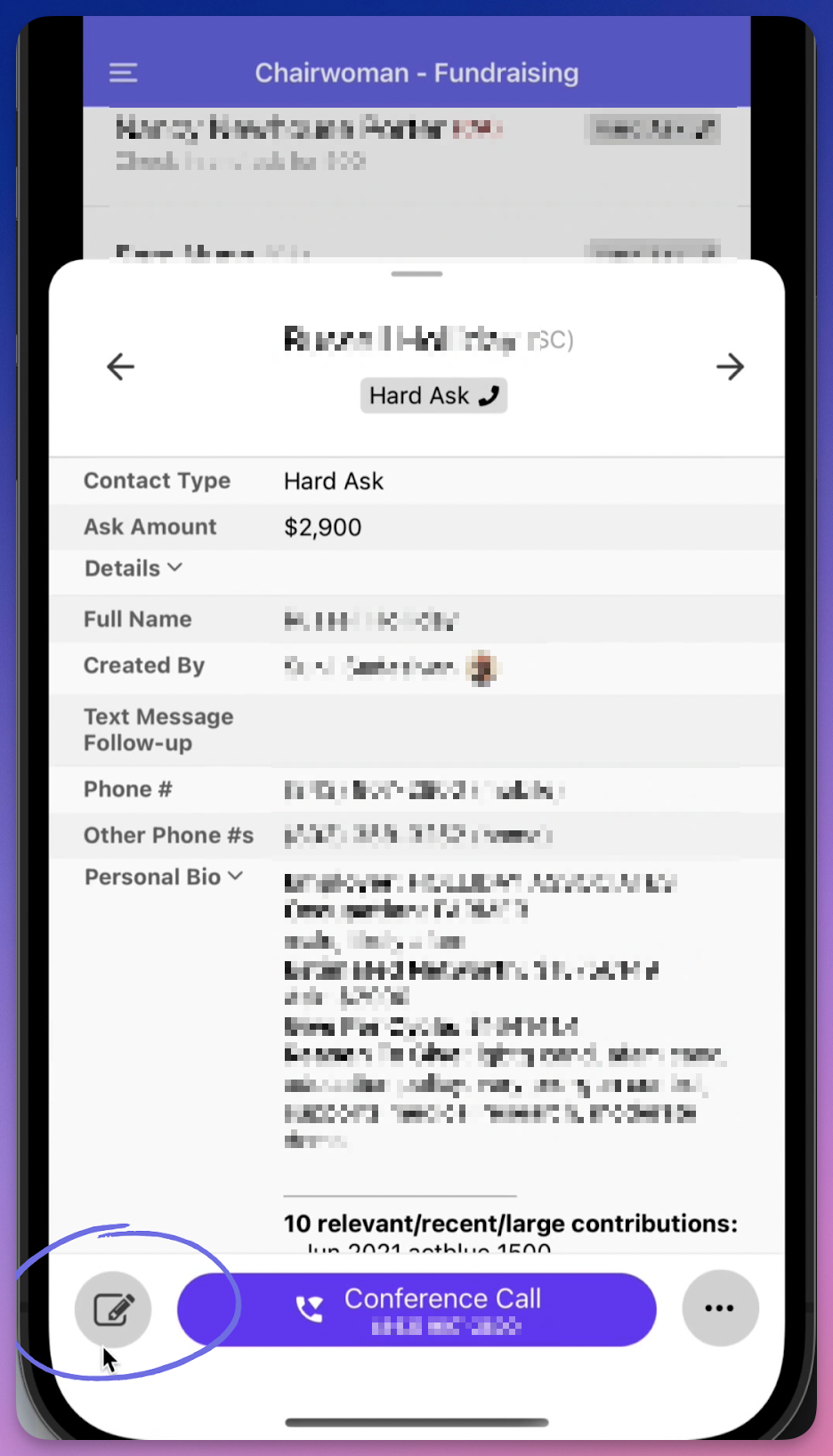
- From there, a pre-made notes template will appear with a list of common outcomes of your call; such as “bad phone number”, “connected”, and “sent text”.
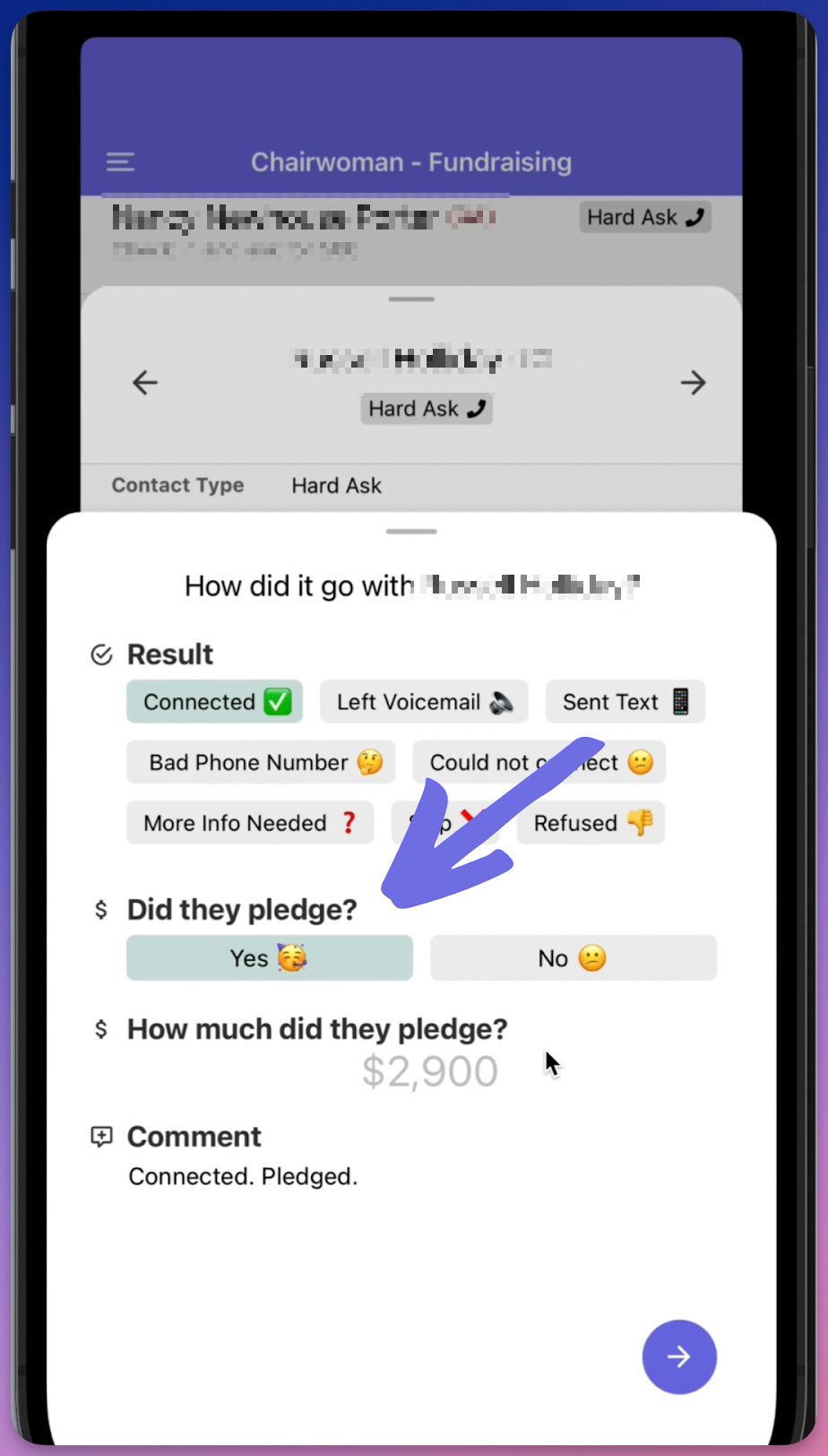
- It will prompt you to select “yes” or “no” to see if the caller had pledged or not. If they did, a second box will appear asking you to fill in how much they pledged.
- This will automatically be typed out for you in the empty space below for notes.
-
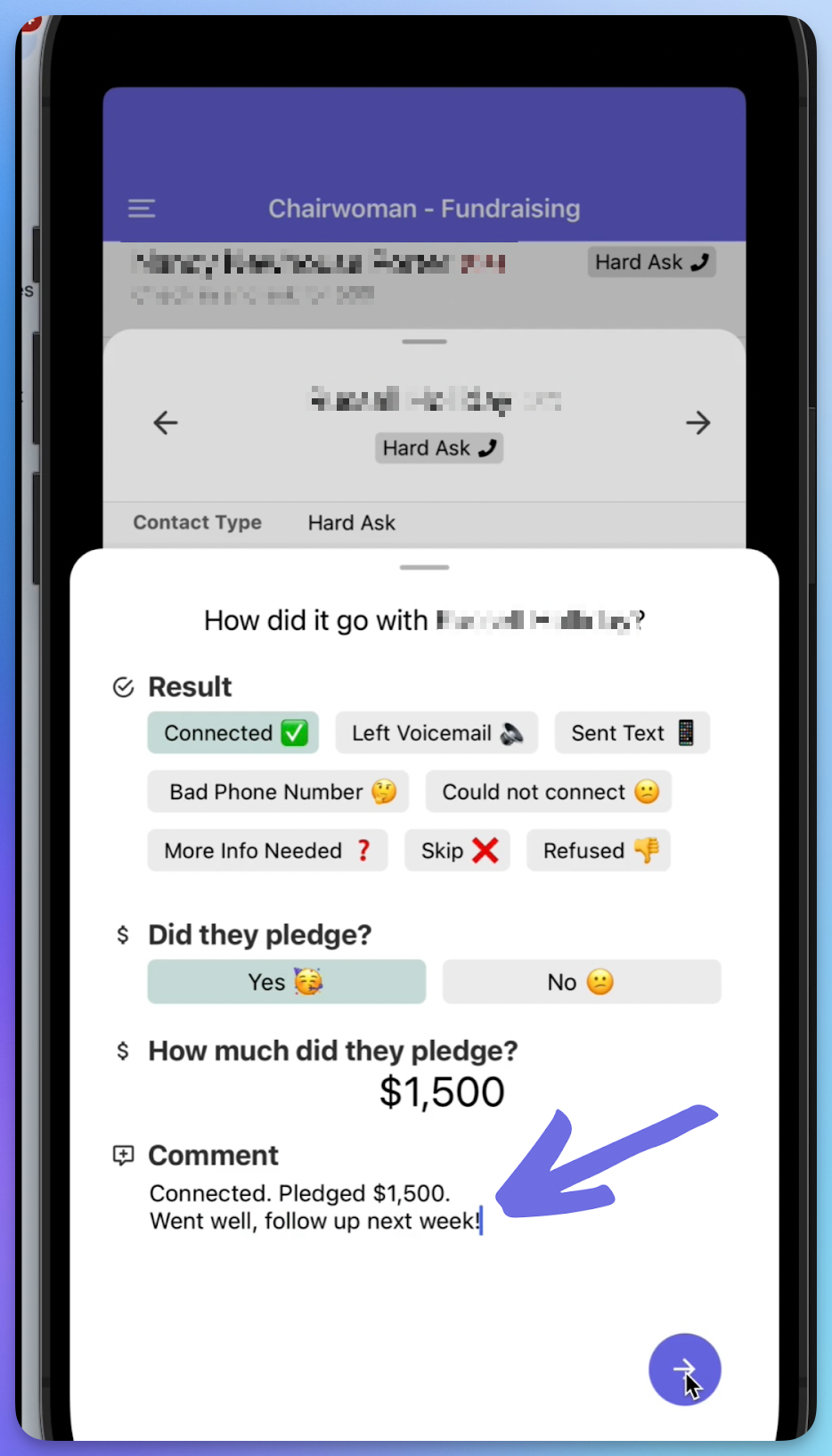
In this same space, you may write whatever notes you would like to; such as “Sarah can come to the event.” or “Candidate will follow up with them next Tuesday about their donation.”
- These notes will automatically save and sync back with your NGP account and your Pingdex records.
Taking notes on desktop: Classic Contact View
- Click on a contact.
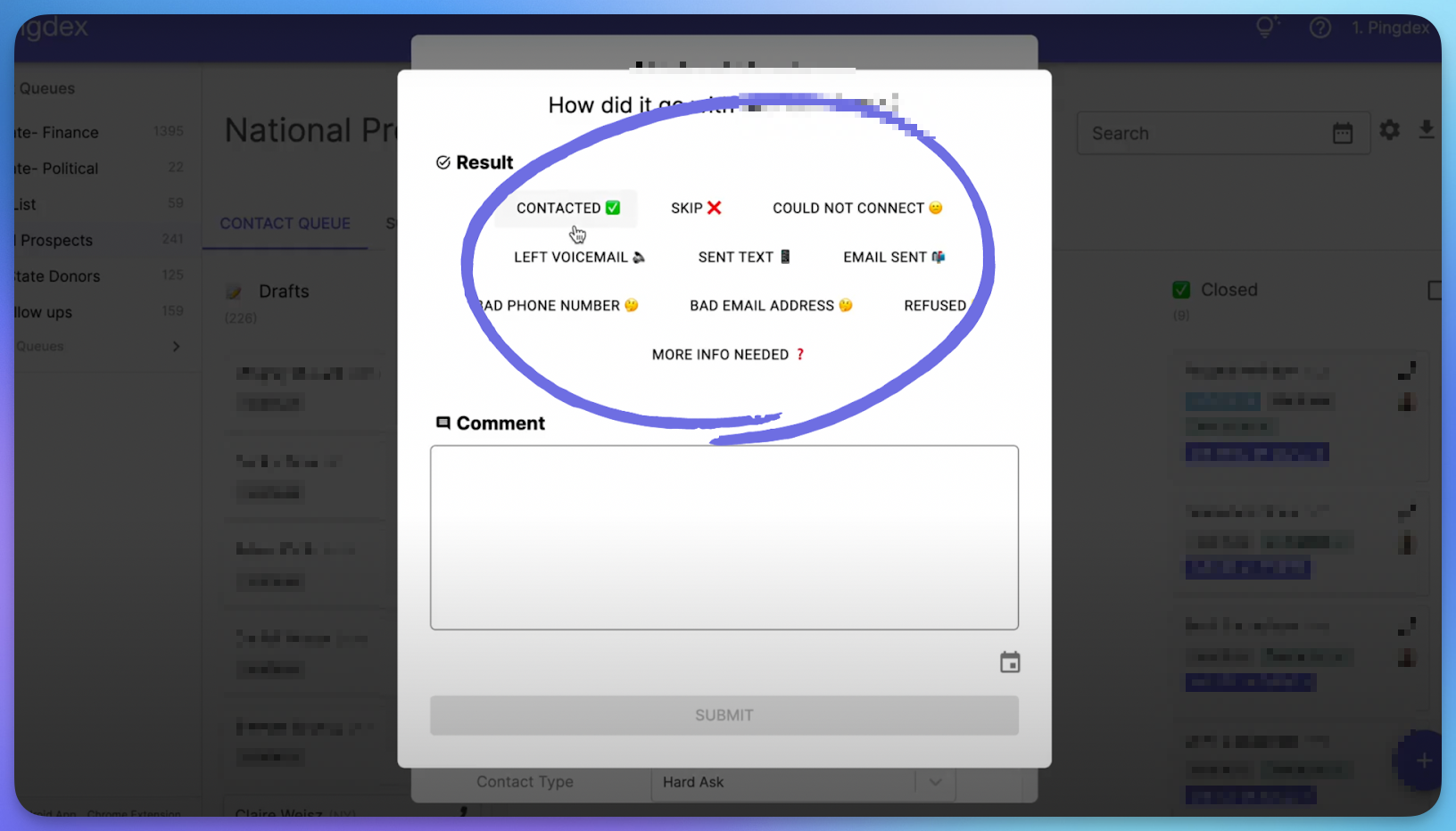
- On the top left hand corner, in purple text, “add result” appears. Click this.

- The same pre-made notes template will appear with common outcomes of your call, allowing you to select notes on how the conversation went.
- It will prompt you to select “yes” or “no” to see if the caller pledged or not. If they did, a second box will appear asking you to fill in how much they pledged.
- This will automatically be typed out for you in the empty space below for notes.
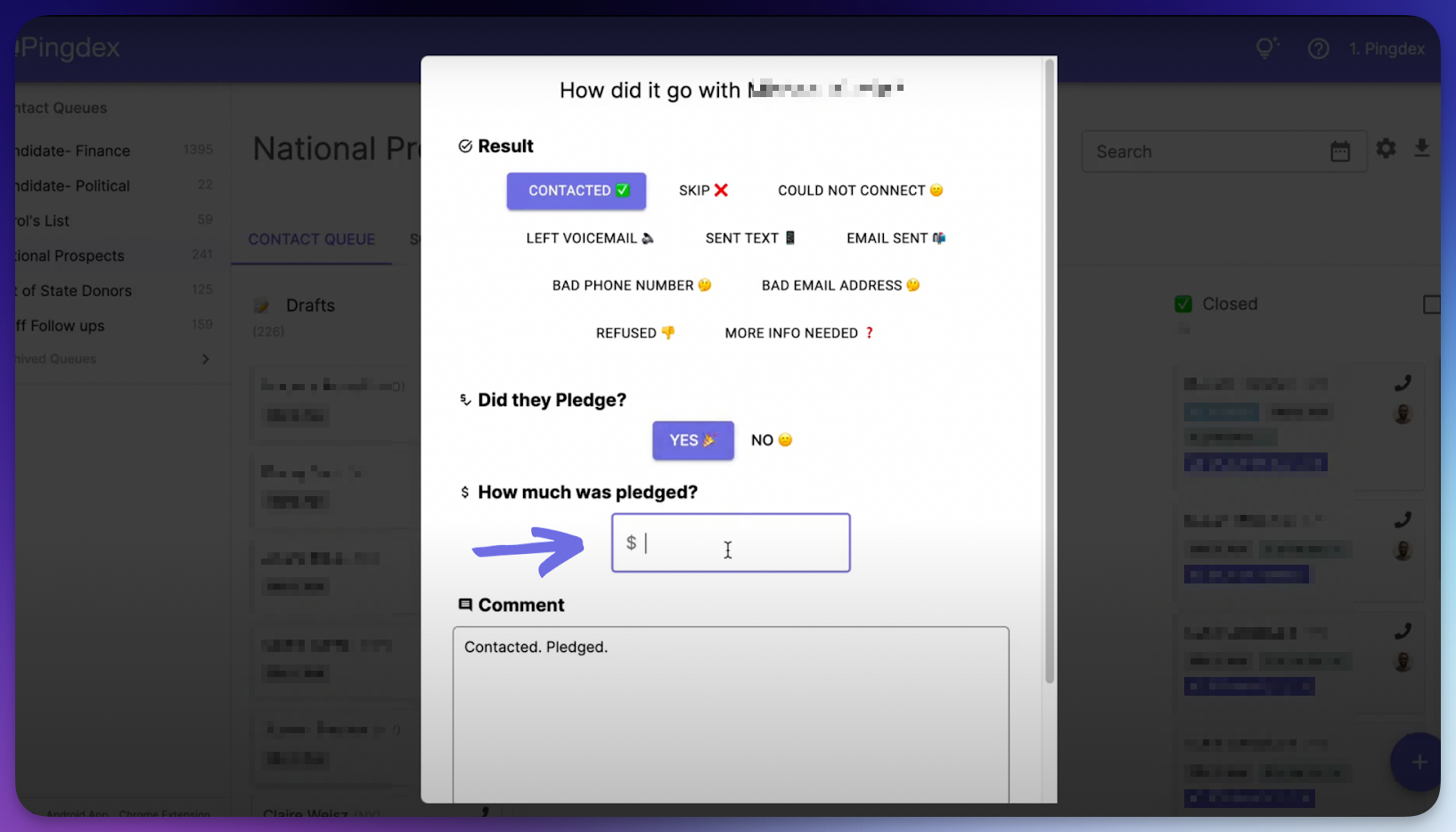
-
In this same space, you may write whatever notes you would like to; such as “Sarah can come to the event.” or “My candidate will follow up with them next Tuesday about their donation.”
- These notes will automatically save and sync back with your NGP account and your Pingdex records.
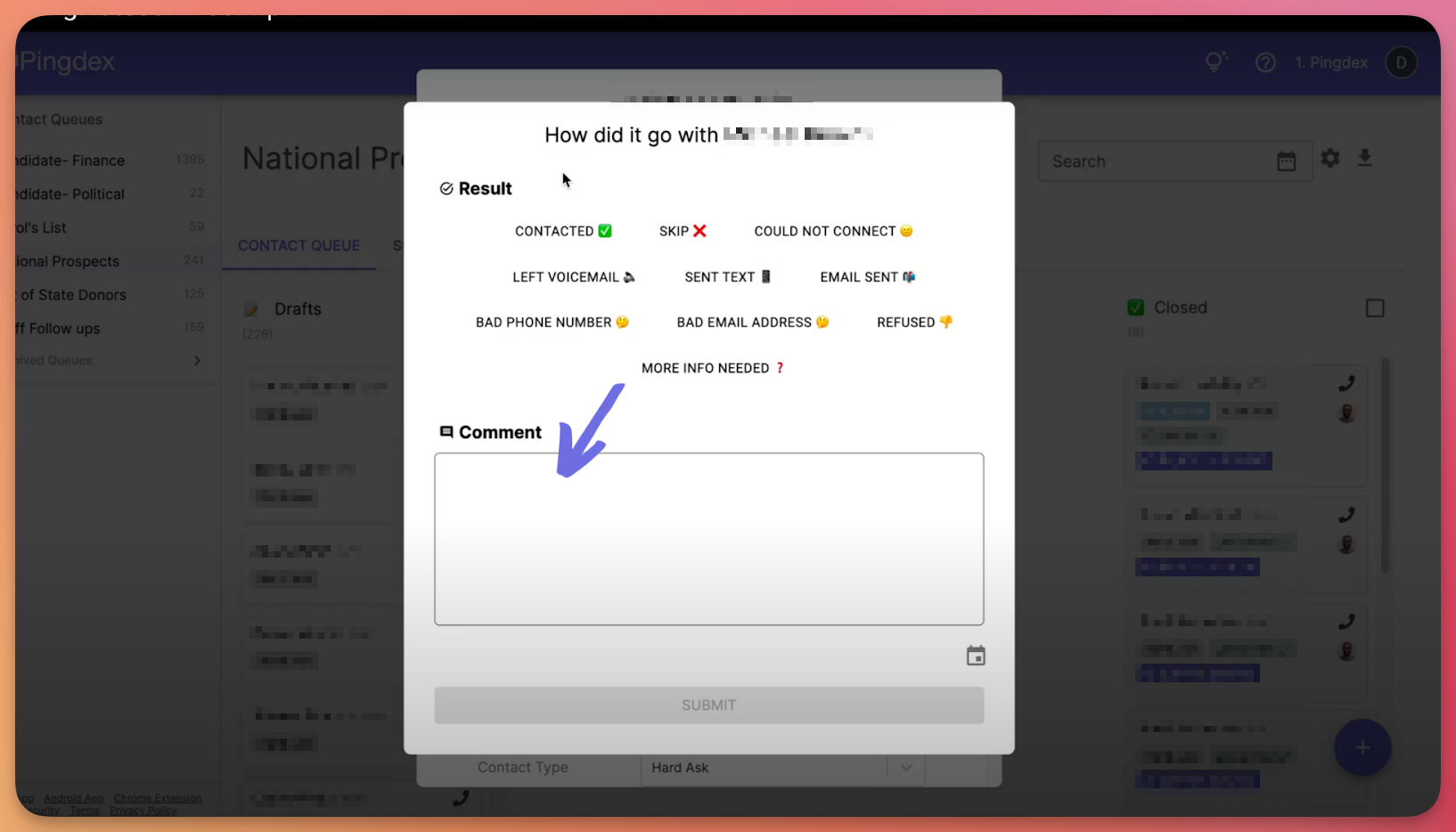
Taking notes using either method will automatically sync those back to the donor's NGP profile.
Taking notes on desktop: New Contact View
- Click on a contact.
- On the top right hand corner, there’s a gray checked box. Click this.
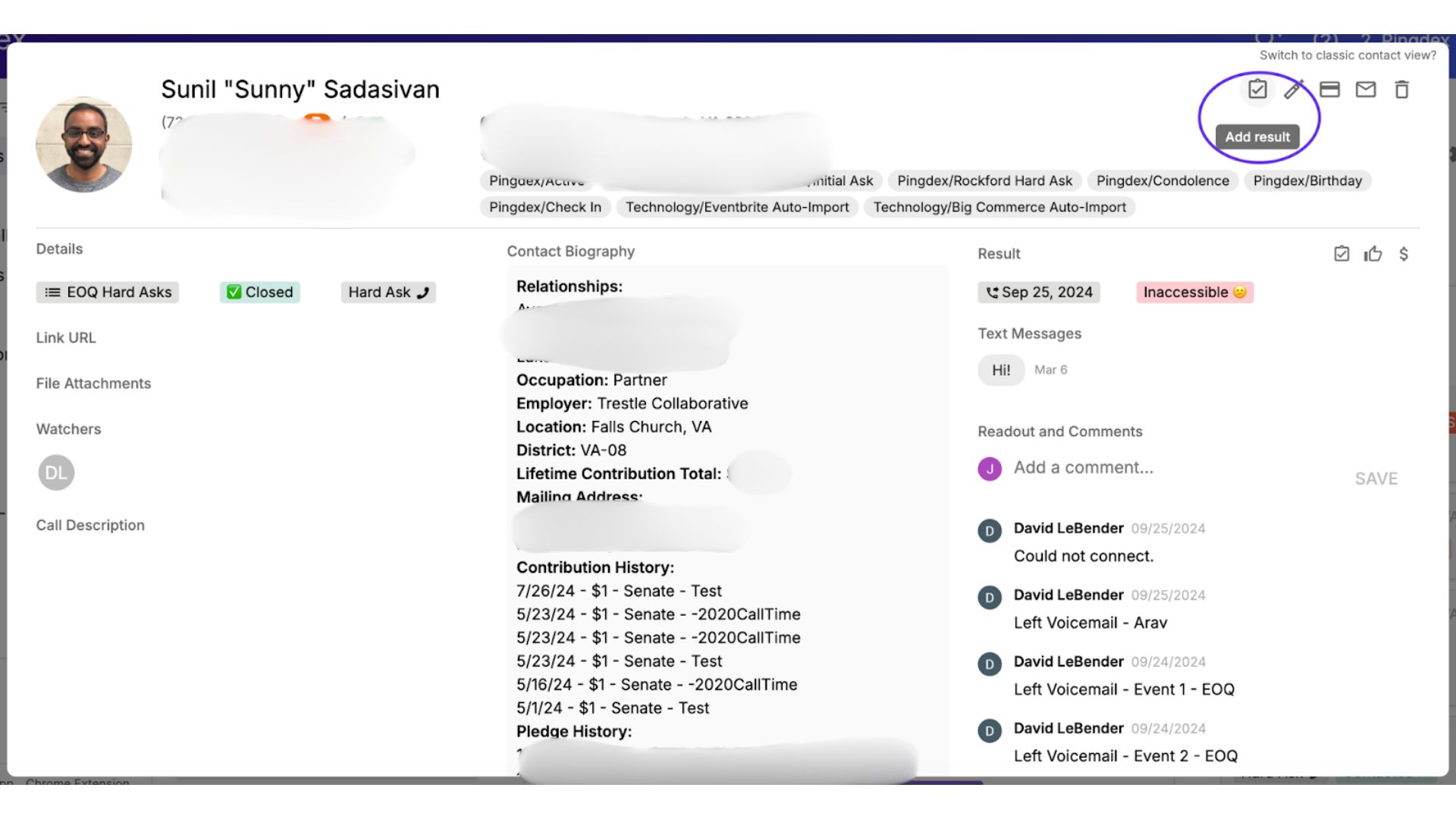
- The same pre-made notes template will appear with common outcomes of your call, allowing you to select notes on how the conversation went.

- It will prompt you to select “yes” or “no” to see if the caller pledged or not. If they did, a second box will appear asking you to fill in how much they pledged.
- This will automatically be typed out for you in the empty space below for notes.

- In this same space, you may write whatever notes you would like to; such as “Sarah can come to the event.” or “My candidate will follow up with them next Tuesday about their donation.”
These notes will automatically save and sync back with your NGP account and your Pingdex records.