Bulk Uploading via CSV
Pingdex allows for a way to bulk upload up to 100 contact requests at one time. This is done with a CSV template. The following are instructions on how to use the Bulk upload via CSV feature.
How to Bulk Upload
1. Hover to the + button on the bottom right corner of the Pingdex dashboard and click Bulk Upload via CSV
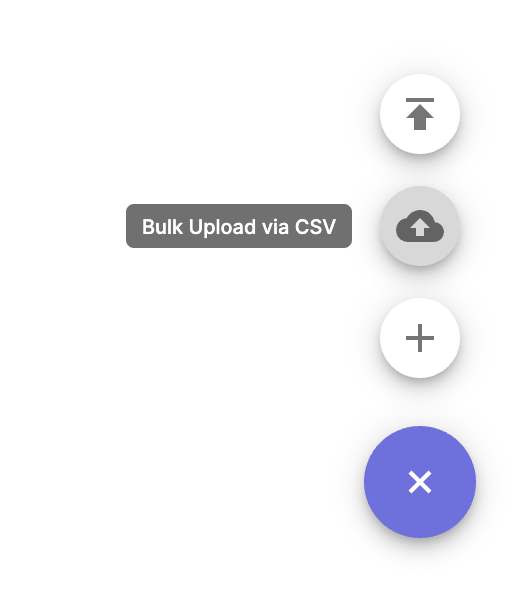
This will download a .csv template for you to fill out. You may use your favorite CSV or spreadsheet editor, such as Google Sheets, Excel or Mac Numbers.
3. Once the CSV file is filled out in the editor, export the spreadsheet to CSV.
In Google Sheets click: File > Download > Comma Separated Value (.csv, current sheet)
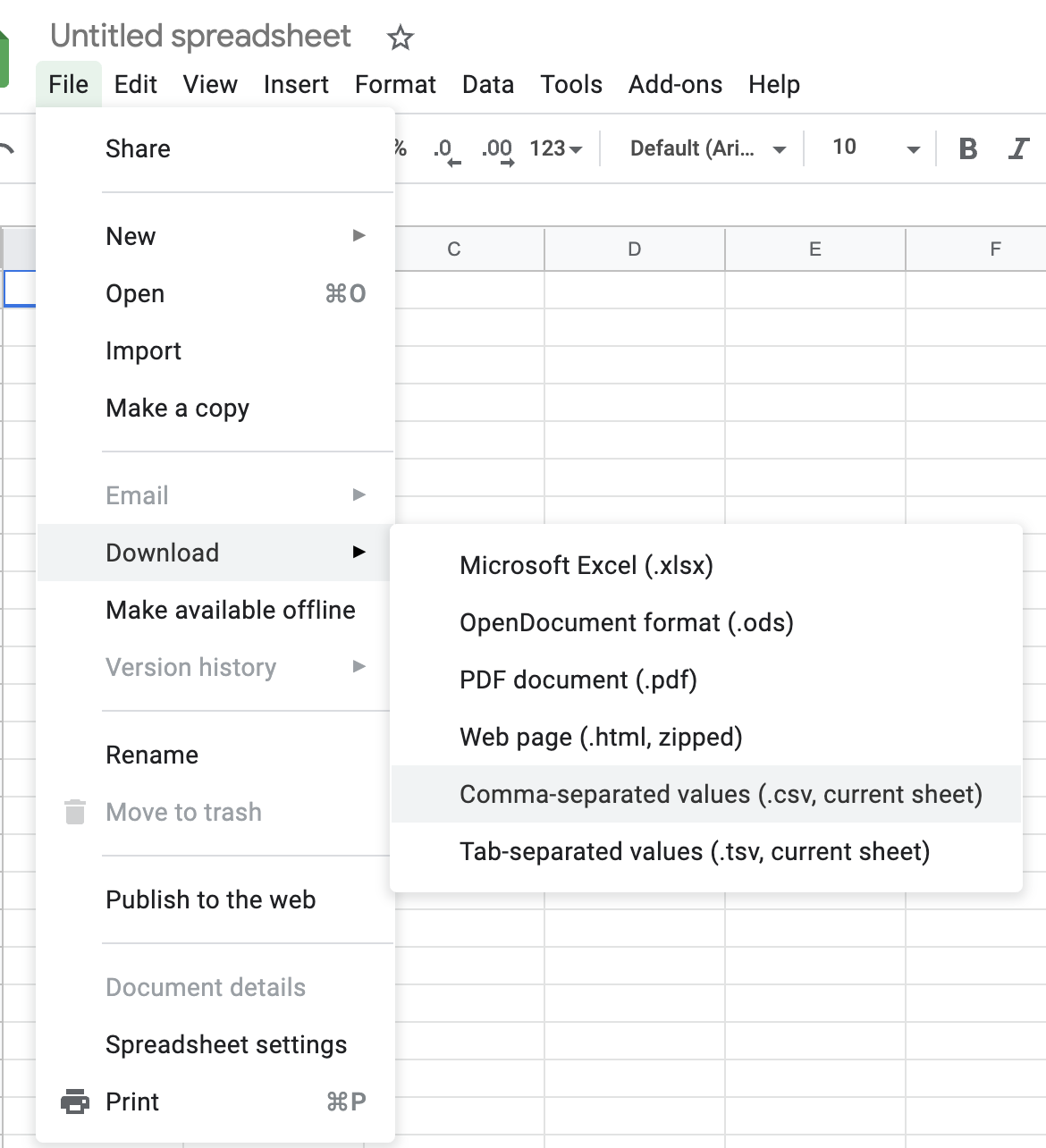
In Excel you can follow these instructions.
In Numbers (Mac) you can follow these instructions.
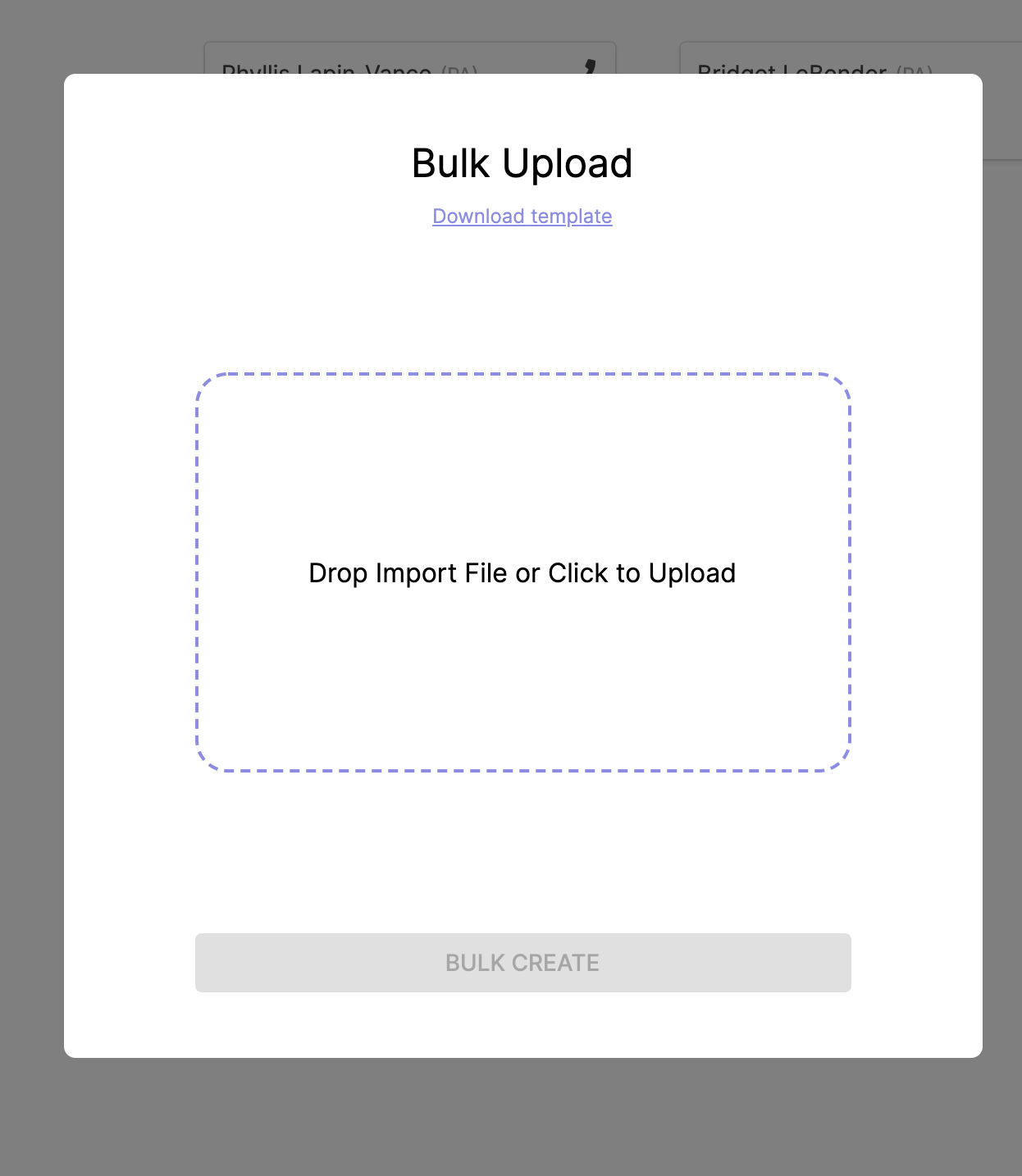
4. Upload the CSV file to Pingdex by clicking or dropping the file in the area specified Drop Import File or Click to Upload
CSV Import Fields
✅ Required Fields
| CSV Column Name |
Field Description |
Action |
The activity to take for the contact (e.g. Call , Email , Text ). Required. If not provided, by default, Call will be selected. |
🆔 Identification Fields
| CSV Column Name |
Field ID |
VANID , Contact VAN ID , VAN ID |
VAN contact ID (contact_van_id ) |
👤 Contact Information
Name Fields
| CSV Column Names |
Mapped Field |
Name |
Full name |
Title , Contact Title |
Honorific or title |
First Name , firstname , first , Contact First Name , First |
First name |
Last Name , lastname , last , Contact Last Name , Last |
Last name |
Also Known By |
Informal or alternate name (contact_salutation_informal ) |
Address Fields
| CSV Column Names |
Mapped Field |
Street Line 1 , Home Address , Street Address , address |
Street address line 1 |
Street Line 2 |
Street address line 2 |
City , Home City |
City |
State Code , State , Contact State Abbr , Home State , State/Province , state |
State (2-letter abbreviation) |
Zip , Home Zip5 |
ZIP code |
📞 Contact Details
| CSV Column Names |
Mapped Field |
Preferred Phone Number , Preferred Phone , phone , mobile , cell , work , home , Home Phone , home_phone , mobile_phone , Mobile Phone , Primary Phone |
Phone numbers (various sources) |
Preferred Email , PreferredEmail , email1 , Email , email , personal email , work email |
Email addresses |
📱 Social Media
| CSV Column Names |
Mapped Field |
Twitter Handle |
Twitter username |
🗃️ Call List Metadata
| CSV Column Names |
Mapped Field |
Contact List Name |
Name of Contact List |
Contact Type |
Type/category of contact |
Status |
Status of ping |
Resolution |
Outcome or resolution |
Comments |
Follow-up notes |
Description , Bio Description , bio |
Internal bio or summary description |
Bad Phone Numbers |
Flagged numbers |
Giving History |
Historical contribution info (string format) |
💵 Financials & Fundraising
| CSV Column Names |
Mapped Field |
Amount , ask , Sterling Mean Ask , sterling_mean_ask |
Ask amount |
Pledge Status |
Pledge outcome |
Pledge Amount |
Amount pledged |
Pledged At |
Pledge date |
Contribution Amount |
Contribution made |
Contributed At |
Contribution date |
Total Amount of Contributions |
Lifetime total (bio) |
🧑💼 Employment Info
| CSV Column Names |
Mapped Field |
Employer , Employer Name , employer |
Employer |
Occupation , occupation |
Occupation |
🕒 Timestamps
| CSV Column Names |
Mapped Field |
Created At |
When the ping was created |
Created By Name |
Who created the ping |
Contacted At |
When contact occurred |
Closed At |
When the ping was resolved |
Closed By Name |
Who resolved the ping |
Last Followed Up At |
Last follow-up date |
Scheduled At , Scheduled |
Scheduled contact date/time |
📎 Communication Details
| CSV Column Names |
Mapped Field |
Text Message |
The custom message to send |
Link Attachment |
Associated link (if any) |
📝 Internal Notes
| CSV Column Names |
Mapped Field |
Notes |
Freeform notes |
Pinned Notes |
Highlighted notes |
ℹ️ Additional Notes
- Unrecognized column headers that are unmapped will be added to the Bio Section in Pingdex.
If you have any trouble at all uploading, please send the upload file to [email protected] for assistance.

