
User Access and Permissions
Pingdex has a flexible set of permissions you can use to control access for your teammates. Permissions and access are set individually for each list. This allows for you to specify which teammates have access to which lists.
Permission Types
You can invite teammates with four different types of permissions, detailed below:
Administrator 📱💻
- Administrators have full permission to the entire list & dashboard.
- Administrators can edit list settings.
- Create, Edit, Delete Contact Tags.
- Invite new users as well as change permissions across the list.
- Update the list name.
- Administrators can export the entire dashboard to CSV.
- Can access the iPhone and Android app.
Manager 📱💻
- Managers have access to view, edit and update contact requests (cards) in the list.
- Managers can add contact notes and move cards around.
- Typically the principal / agent should be set with this manager permission.
- Can access the iPhone and Android app.
Viewer 💻
- Viewers can view the all requests created in the dashboard, however they cannot make changes or move cards from one to another column.
- Viewers cannot access the iPhone and Android app.
- Viewers can create contact requests.
Request Only 💻
- Request only teammates can only request contact events to be made.
- They will only be able to see cards created by themselves.
- These requests will need to be approved by a manager.
Setting User Access and Permissions for a List
Step 1. Go to List Settings
The list settings are accessible via the gears icon on the top right of the page. You will need to be an administrator to view this.

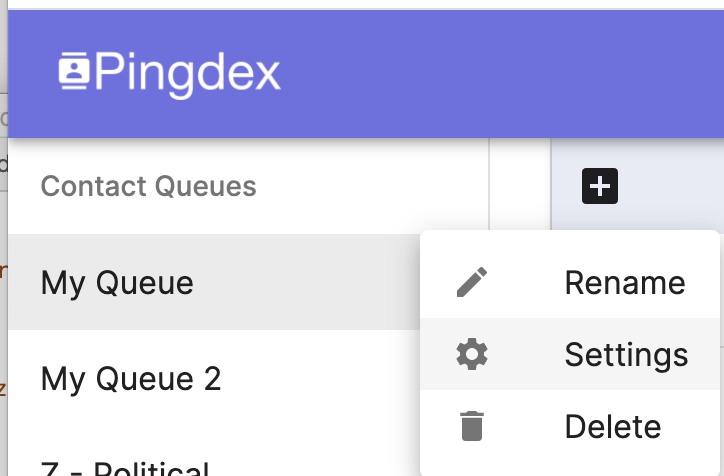
Alternatively you can hover on to the list name on the top left Contacts List Menu and click on the ellipsis icon. This will bring a dropdown menu where you can click Settings.
 Step 2. Invite and Set Permissions
 Step 2. Invite and Set Permissions
On the settings page, scroll to the bottom to view user the Team Member & Access section. There you can add, remove, and edit team members.
On the right is a section to specify permissions.
Setting permissions happens individually for each list. So you will need to ensure you're adjusting the permission and access settings for each list.
