
🔐 Enabling Google Sign-In for Pingdex
To allow your team to use our email features with Pingdex using their Google accounts, you may need to enable the app in your Google Workspace admin console.
✅ Steps to Enable Pingdex:
-
Visit the Admin Panel (you must be your Google Workspace account administrator to do this)
Head to the Google Admin App Access Control page.
You must be signed in as an administrator.
Click: "Configure New App"
Search: "Pingdex"
In the "App Access Control" section:
- Use the search bar to look for "Pingdex" and select the first option, or
- Search using the client ID:
805368308880-901t77a2ptbeg2hb32vj4pv6vus2pci9.apps.googleusercontent.com
- Enable Access
- Once the Pingdex app appears, click on it.
-
Choose "Trusted" to allow users in your organization to sign in via Google.
Save Changes
-
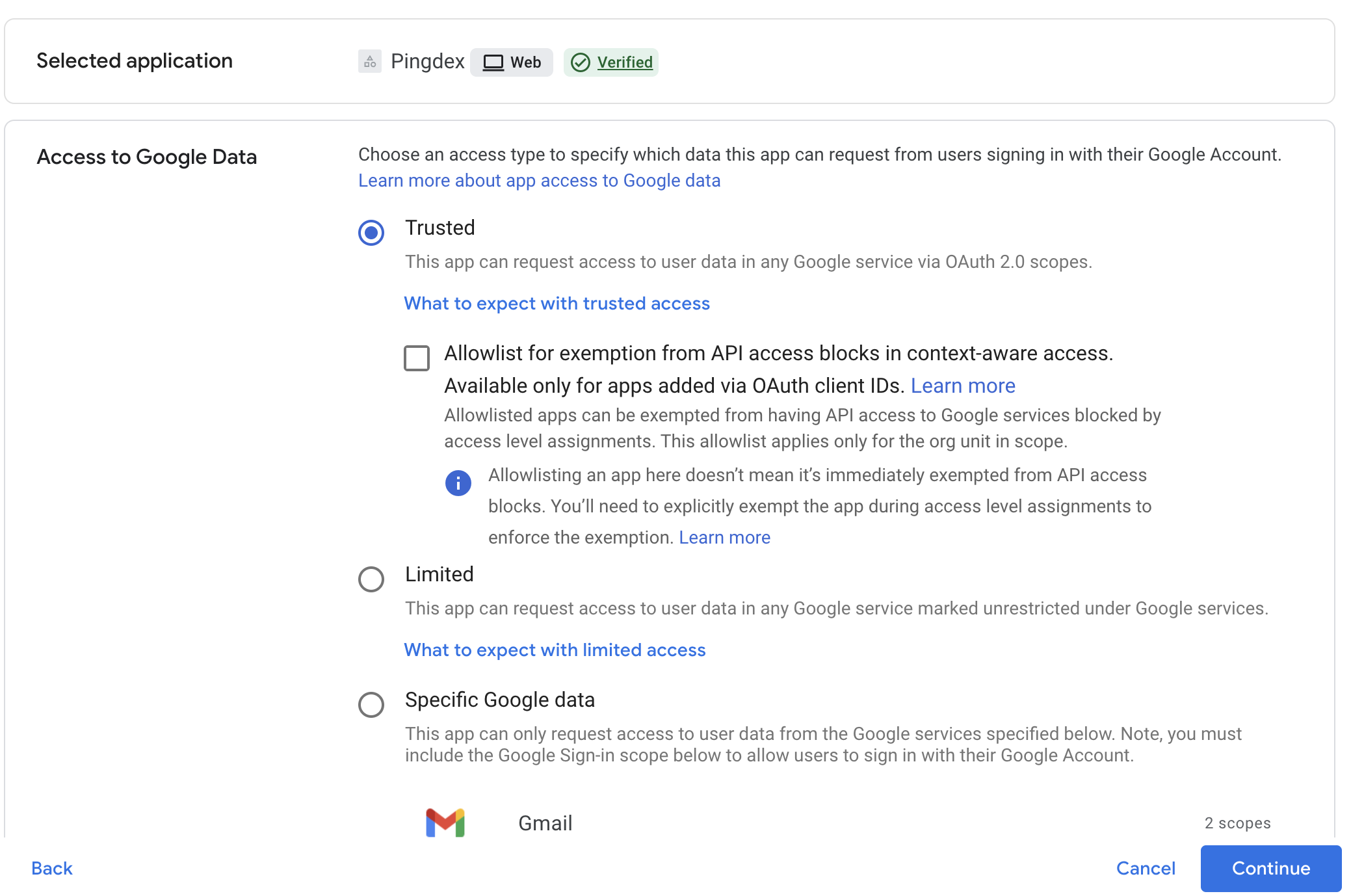
- Click Save to apply the settings.
- It may take a few minutes to propagate across your domain.
💡 Troubleshooting
- Don’t see the app listed? Try using the Client ID directly rather than the name.
- Not sure if it’s working? Log out and attempt to sign in to Pingdex with your Google account.
Still stuck? Reach out to us at [email protected] — we’re happy to help!