
Recording and Dropping Voicemails
ENABLE PRERECORDED VOICEMAILS
- Hover your mouse over the Contact List you want to enable prerecorded voicemails for. Three dots should appear to give you more options– click on them.

- You will have multiple options to choose from; choose “Settings”.

- Scroll down to “Enable Conference calling and Prerecorded voicemails”. Make sure this button is clicked. (NOTE: You cannot drop prerecorded voicemails without conference calling being enabled)

- You should now be able to drop prerecorded voicemails on your mobile device as well as your web dialer.
Note: You will need to go into the settings of each individual Contact List you want to enable prerecorded voicemails in and repeat the above steps.
If you still need additional help, here is a video to walk you through the steps → https://cloud.pingdex.app/6NW1XX3n
PRE-RECORDED VOICEMAILS
- Click on the web dialer, it is next to the “Contact List” List. It has a headset logo to identify it.

- To set a voicemail, click on the purple “NONE”. Once you have pre-recorded voicemails, this will have the title of your voicemail in this spot in lieu of “NONE”.

- Click on “Record New Voicemail”.

- When you click on the green button, you’ll be prompted to record the message.

- After your voicemail is recorded, you can choose its title.
- You are now free to use your voicemail whenever you need.

(NOTE: These voicemails can be used in every queue if enabled)
RECORD ON MOBILE
- To record a new voicemail on mobile, open the menu on the left of the app and click on the setting on the bottom left.

- Once inside settings, click on “Pre-recorded Voicemails”.

-
This will open a menu of all pre-recorded voicemails you currently have recorded and have access to. In order to record a new one, click on the purple “+” symbol in the bottom right hand corner of the screen to prompt the recording screen to appear.
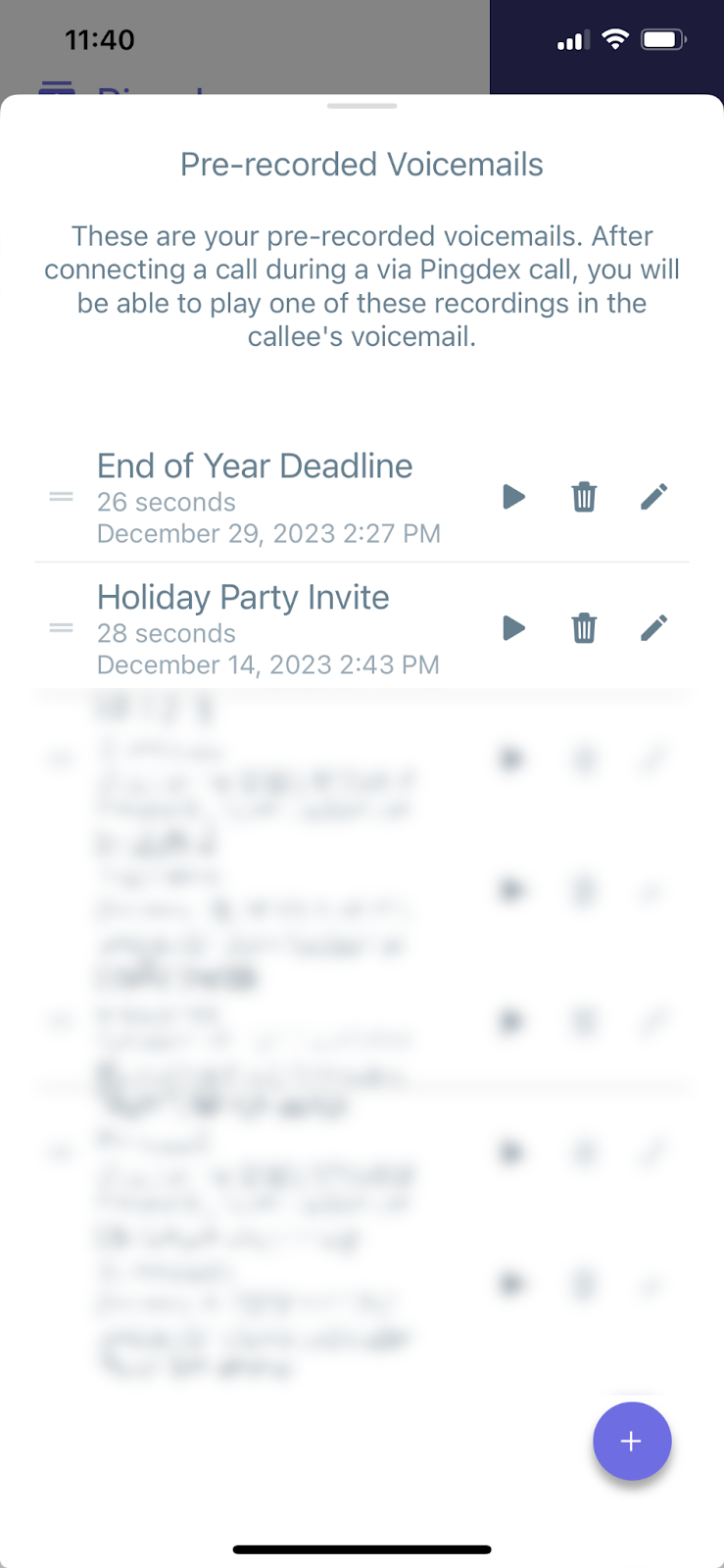
- The recording screen will prompt you to enter basic information about your voicemail, including a title and if you want to share the voicemail with all Contact Lists in your organization. When you are ready to record, press the record button and record a message up to 90 seconds in length. You may then play the message back and choose to save.
- If you choose to save the message, it will be available to use on all calls on both the app and the web dialer (and on all Contact Lists if you allow it to be shared throughout your organization).

DROPPING A VOICEMAIL WHILE DIALING
- Using the webdialer, you can use easy keyboard shortcuts to perform the basic functions of the dialer.
- (C) - Call
- (H) - Hang Up
- (V) - Hang Up & Drop Voicemail
- (S) - Skip
- (D) - Show Dialpad
You can also click on the logos themselves to perform the actions.

- To drop a voicemail, simply click the “V” on your keyboard or press the voicemail button. This will trigger the system to drop your selected voicemail and allow you to move on to making your next call.
DROPPING A VOICEMAIL ON MOBILE
- To drop a voicemail on mobile, click on the “drop voicemail” button on the bottom left.

- This will prompt all of your pre recorded voicemails to appear. Click on the one you want to drop, and it will trigger that one to send when you press the “send” button on the right.
